

If you decided to print your documents in a print shop

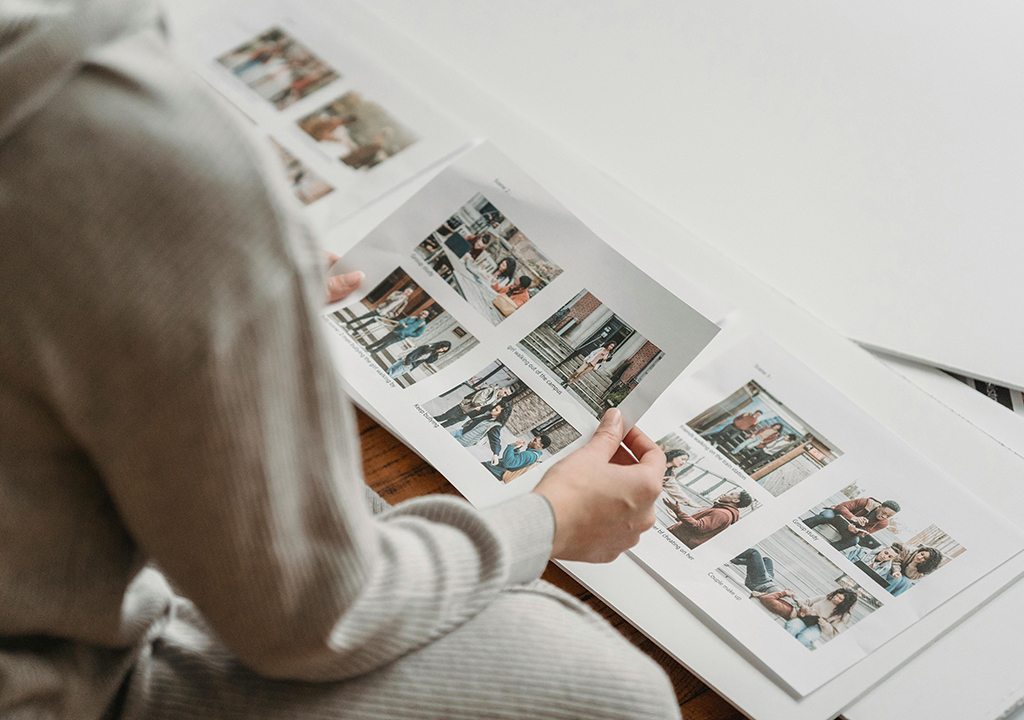
You’ll probably find it helpful to get some tips on how to prepare the correct design and which format to use to meet the print shop requirements. Below you can find these requirements and tips.
Design Requirements for the Document
Resolution
You may want to use photos and images obtained from a digital camera, scanner, or the Internet. For the printed image to be of high quality, resolution is essential. A picture that looks all right on the screen may have jagged edges and appear fuzzy when printed. Therefore, the resolution of your image must be at least 300 dpi. To check whether your image has enough resolution, zoom in on your document until 600%. When printed, the image will look fine if it is acceptable. If you still decided to use a low-resolution image, resize it in Swift Publisher to make it smaller—the print output quality will increase.
You can access a collection of high-quality images with Swift Publisher. Check that the images you use from the Internet are of sufficient quality for your work. The resolution of such images is typically insufficient for commercial printing.
Colors
When you design your document, the colors you see on the screen are made up of the following three color components: red, green, and blue (such a color scheme is known as RGB). The monitor creates additional colors by combining these three colors. However, printers and other polygraphic equipment use another set of color components: Cyan, Magenta, Yellow, and Black (this scheme is called “CMYK”). When creating your document, keep this in mind: don’t use too many bright colors because the colors on paper may not always match those on the screen. To get printed colors to look like on your screen:
- The appropriate screen profile should be selected for your display.
- The original graphics that you are going to add to your document should be converted to CMYK colors.
- Use the CMYK Sliders on the standard Colors for choosing colors for elements of your design.
A Swift Publisher document can be converted to CMYK colors when you are exporting it to a TIFF or JPEG graphic file.
Preparing Your Materials for a Printing Company
File Formats
Before you carry/upload your work to a printing company, find out the printing company’s file format preference. Almost all print shops accept materials in the PDF and TIFF formats. With Swift Publisher, you can save your design in either of these formats at the required quality (600 dpi resolution is the standard for high-quality printing). Use the File / Export menu command for this.
The JPEG file format is not recommended. It loses quality because of compression. Also, JPEG images are usually not sharp.
PDF and Fonts
To display and print a PDF document correctly on another machine, all the fonts used should be installed on it. Otherwise, the system will try to find replacement fonts. Such fonts may look different from how they look on your computer. To avoid this problem, two methods are commonly used. First, the fonts used are embedded into the PDF document. The second, all text is converted to a vector image that looks exactly like your text (no quality loss when you scale it up). Note that both methods inflate the size of the PDF document. In Swift Publisher, you can use the second method. In order to accomplish this, in the PDF export settings, select the Convert Text to Curves option.
Passing Your Materials to a Print Shop
Once you’ve designed your document, save it on the disk in the required format (the filename extension—PDF or TIFF—should not be omitted). Before sending the file, compress it to decrease its size. It’s especially important if you submit your design via the Internet. Compress your files using Aladdin’s StuffIt to create a SIT file, or a Zip archive (choose the File / Create Archive menu item in Finder).
The prepared material can be delivered to the print shop in a variety of ways; inquire about which method is best for your company:
- Write your files to a CD, DVD, Zip, or Jaz disk, and mail or carry the disk to the print shop. On your disk, include only the file(s) you want to have printed.
- Upload the files via FTP (File Transfer Protocol). If your print shop supports this method, ask them for their FTP server name, login,n and password.
- Send your file(s) as an email attachment. Check to see if your service provider allows large attachments (over 2 MB) and if your print shop accepts them.
- On-line. Many print shops may have a file upload form on their websites. Follow the instructions there.
Don’t forget to consult your print shop for their preferred method.
Some More Tips
Text Background
To make flyers, brochures, and other printed production more attractive, designers use background images. If you have such background images behind text, make sure that the text is readable. Don’t make the background too dark behind the black text.
In Swift Publisher, you can adjust the opacity of images or tint them so they are in contrast with the text.
Check Spelling and Punctuation
Before you send your documents to a print shop, check spelling and punctuation. Some text editors can do this for you. Don’t let an unfortunate misprint bring your work to nothing.
Make a Hard Copy of Your Document
Before ordering thousands of copies of your document, print one to see that all is done well. This will help you to avoid mistakes. Maybe you will see something that you missed on the screen.
Image Content
On the internet, there are multiple gorgeous images that will suit numerous project ideas. The key necessity to bear in mind is to search for stock or royalty-free photos. Otherwise, you can inadvertently print out someone else’s intellectual property without permission and spoil the results of your work. Numerous contemporary methods for designing image content are applicable because of the divergence of sources:
- Google’s plethora of artwork can randomly lead interested parties to specialized websites.
- You have to double-check whether the content you would like to apply won’t break the rules. For instance, the stock of Beltrami Studios or well-known characters like Winnie the Pooh or SpongeBob requires authorized licenses to work with.
- To get access to unique content, you can check image galleries of software for desktop publishing and their alternatives. Purchasing illustrations is a good idea on third-party platforms, including DepositPhotos.
What Printing Tools Are Best for Photos?
Regardless of what your final objectives are, it is crucial to ensure the quality of your project won’t be ruined by poor or inappropriate equipment. If you would like to prepare photo flyers for your business affairs or design an illustration collage at home, you will need to pay attention to the suitability of paper types and printers for your purposes.
If you want to get the most out of your hardware, giving your preference to branded options won’t be disappointing. Even if they are more expensive than no-name goodies at low prices, this investment is going to be more productive in the long run. For printing photos, Canon, Epson, and HP provide exclusive materials in the form of paper and target devices. Numerous obstacles can be avoided by making use of such matches. For instance, a good Epson printer and a pack of premium glossy paper result in smooth and efficient publishing of high-resolution art stock.
What Types of Paper Are Most Suitable for Printing Business Files?
Of course, a lot of nuances become clear after the project’s specifications and goals are identified. Let’s get more specific. If enthusiasts need their creations to last, a good choice is vinyl varietals. This material has a higher resistance to water and other environmental influences. The paper brightness and weight are also crucial parameters.
For those parties who need to increase the readability and eye-catching powers of their project, glossy materials will be brighter and, therefore, more suitable. Thick matte paper is a great option if you want to keep a professional look while also making it stand out for more personal uses, like business cards. Printing faxes and emails on non-premium paper is up to the business. The standard lightweight options that are around 90 g/m2 are applicable. For more lasting and noticeable influences, the increase in thickness is a must. For two-sided printed materials, medium-weight types are ideal, while the following type of paper is ideal for branding presentations.