

I recall the frustration of trying to communicate in my native script while living abroad. Connecting with my heritage often felt hindered by clunky software that simply could not keep up with my thoughts.
Finding the right solution changed everything for my digital workflow. Whether you are using Windows, Android, or an iPhone, selecting the best Urdu typing tools is essential for maintaining your creative flow.
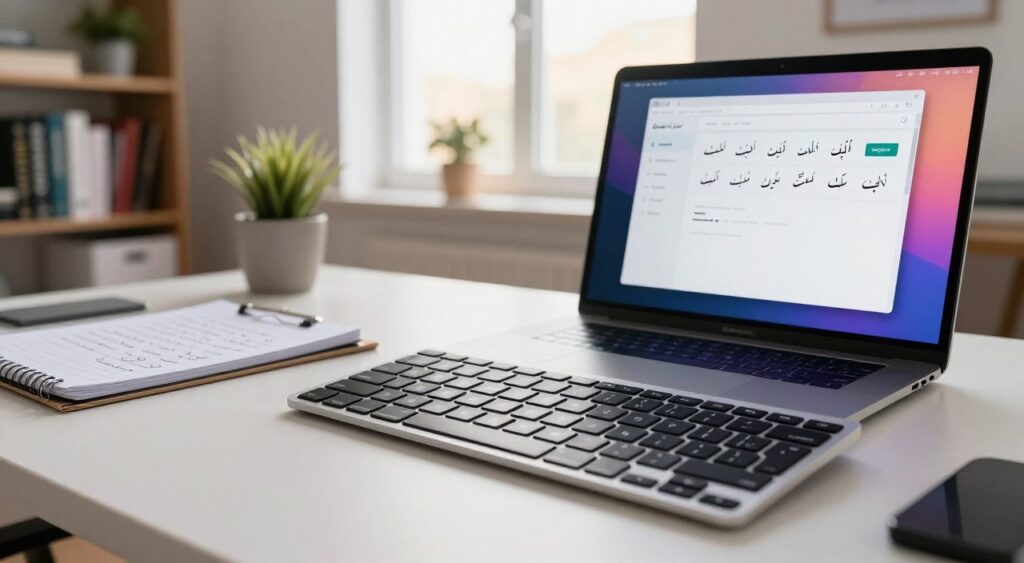
Best Urdu Typing Tools
In this guide, I will help you navigate the landscape of modern input methods. We will explore how to improve your speed, ensure Unicode compatibility, and protect your privacy while you write.
By comparing various options for your browser or mobile device, you can achieve seamless communication. Let us discover the Best Urdu Typing Tools that fit your unique needs today.
Key Takeaways
- Identify the most efficient software for Windows and mobile platforms.
- Learn how to boost your speed and accuracy during daily tasks.
- Understand the importance of Unicode compatibility for universal text display.
- Discover how to select a layout that feels natural for your fingers.
- Prioritize your digital privacy when choosing new input software.
How I Evaluate the Best Urdu Typing Tools
My evaluation of the best Urdu typing tools focuses on several key aspects. I don’t just look at popularity; I dive into how each tool handles Urdu’s unique needs. This approach helps you find the perfect tool for your workflow.
Accuracy, Urdu script support, and character placement
The accuracy of Urdu script rendering is paramount. I seek tools that support Unicode to ensure text displays correctly everywhere. Proper character placement is crucial, given the complexity of Nastaliq style ligatures and diacritics.
Typing speed, layout options, and learning curve
In evaluating the best Urdu typing tools, I assess typing speed and ease of use. I look for tools with phonetic layouts or traditional layouts that aid in memorization. A tool with a steep learning curve is less productive, so I prefer those with clear, intuitive guides for beginners.
Device compatibility, privacy, and offline access
Today’s users value flexibility. I ensure the tool works on Windows, macOS, Android, and iOS. I also check privacy policies to safeguard your keystrokes. Lastly, offline functionality is crucial for uninterrupted work.
Evaluation Criteria | High Priority | Medium Priority |
Script Rendering | Unicode Support | Font Customization |
Layout Flexibility | Phonetic Options | Custom Key Mapping |
Security | Offline Mode | Cloud Sync |
Ease of Use | Learning Curve | UI Design |
Choose Between Phonetic, InPage, and Urdu Keyboard Layouts
My experience reveals that selecting the right typing method is crucial for your workflow. Whether you’re a casual writer or a professional publisher, the correct Urdu typing software significantly impacts your daily output.
How phonetic Urdu typing maps English sounds to Urdu letters
Phonetic typing is ideal for beginners. It maps English characters to their closest Urdu sound equivalents. For instance, typing “k” on your keyboard yields the Urdu letter “ک”.
This method allows you to type naturally, without needing to memorize a new key arrangement. It’s perfect for those familiar with the standard QWERTY keyboard layout.
When a traditional Urdu layout is better for professional work
Traditional layouts are favored by professional typists for their efficiency. They place the most used characters in easy-to-reach positions. This minimizes finger movement during long typing sessions.
For long manuscripts or complex documents, traditional layouts offer a consistent rhythm. They help maintain high typing speeds once muscle memory is developed.
How InPage-style workflows differ from modern Unicode typing
InPage was once the standard, using proprietary encoding systems. Now, modern Urdu typing software favors Unicode, the universal digital text standard. Unicode ensures characters are recognized by all modern systems and browsers.
Unlike InPage, Unicode allows seamless integration between applications. You can copy text from one app and paste it into another without losing formatting or character integrity.
Why Unicode compatibility matters for websites and documents
Unicode compatibility is essential for online content publishing. Without it, text may appear as broken symbols or “tofu” boxes on various devices. Modern Urdu typing software ensures your content remains readable everywhere.
Common layout mistakes that reduce typing accuracy
Many users face challenges due to frequent layout changes. This hinders the development of muscle memory for speed. It’s wise to stick to one layout until you’re fully comfortable before learning another.
Best Urdu Typing Tools for Windows PCs
Choosing the right tools for typing in Urdu on a Windows PC can greatly enhance your productivity. Whether you’re writing professional documents or sending casual messages, the right Urdu typing software is crucial. I’ve reviewed several options to guide you in finding the best Urdu keyboard for pc that suits your needs.
Microsoft SwiftKey for Urdu typing on Windows-connected devices
Microsoft SwiftKey is a top-notch tool that brings advanced predictive text to your desktop. It learns your writing style, making typing faster. If you use it on your mobile, switching to your PC will be smooth and intuitive.
Pak Urdu Installer for phonetic Urdu typing on a PC
The Pak Urdu Installer is a popular choice for its simplicity and reliability. It uses a phonetic layout, allowing you to type Urdu characters by their English sound. This Urdu typing software is lightweight and works well with most Windows apps.
CRULP Urdu Phonetic Keyboard for a familiar English-based layout
For those who prefer a layout similar to English keyboards, CRULP is ideal. It maps Urdu letters to keys based on phonetic similarity, making it easier to learn. Many professionals find this the best Urdu keyboard for pc due to its consistent mapping.
Windows built-in Urdu keyboard for a no-download setup
You don’t always need third-party apps to type in Urdu. Windows has a built-in language support feature that’s stable and secure. This is perfect for users who prefer not to install extra software.
How to add Urdu from Windows language settings
To enable this feature, follow these simple steps:
- Open the Settings menu on your Windows PC.
- Navigate to Time & Language and select Language & Region.
- Click on Add a language and search for Urdu.
- Follow the prompts to install the language pack and keyboard layout.
How to switch between English and Urdu efficiently
Once you’ve added the language, switching between inputs is quick. Use the keyboard shortcut Windows Key + Spacebar to cycle through your installed languages. This ensures you can type quickly without needing your mouse.
Best Urdu Typing Tools for Android Phones and Tablets
I’ve tested various mobile keyboards to find the best Urdu typing app for Android devices. The right tool is crucial for quick and accurate Urdu communication on the move.
Gboard for Urdu voice, phonetic, and script input
Gboard is my top pick for its seamless integration with Android. It offers a phonetic mode for typing Urdu with English characters, making it easy for most users.
Gboard also excels in voice input. You can speak your messages in Urdu, and it transcribes them with great accuracy. It supports traditional script input for those who prefer the classic layout.
Microsoft SwiftKey for Urdu predictions and multilingual typing
Microsoft SwiftKey is ideal for those who switch between languages often. Its advanced prediction engine learns your writing style over time.
SwiftKey makes typing in multiple languages easy. You can type in English and Urdu simultaneously without switching keyboards. This is a huge time-saver for bilingual users.
Google Indic Keyboard alternatives and compatibility considerations
Many users used Google Indic Keyboard, but it’s now integrated into Gboard. Look for apps with Unicode support for correct text display across platforms.
When choosing an app, ensure it’s compatible with your Android version. This prevents performance issues or crashes.
How to compare keyboard privacy settings before installation
Privacy is crucial when installing a new Urdu typing app. Check the app’s permissions to see if it accesses your contacts or location, which is often unnecessary.
“The best keyboard is one that balances powerful predictive features with a strict commitment to user data privacy.”
— Mobile Productivity Expert
Enable Urdu and customize the keyboard layout
To start, go to your device’s “Languages & Input” settings. Add Urdu as a secondary language and choose your preferred layout, like phonetic or traditional.
Turn off unwanted autocorrection and prediction changes
Aggressive autocorrection can disrupt your typing. Disable these features in the keyboard settings to ensure your messages are as intended.
Feature | Gboard | SwiftKey |
Phonetic Support | Excellent | Good |
Voice Input | Superior | Standard |
Multilingual | Good | Excellent |
Privacy Focus | High | High |
Best Urdu Typing Tools for iPhone and iPad
I’ve explored numerous tools to guide you in selecting the top Urdu typing app for your Apple devices. Achieving a balance between speed and accuracy is crucial for a seamless iOS experience. Your choice between native options and third-party features significantly influences your typing efficiency.
Apple’s built-in Urdu keyboard for reliable everyday typing
The native iOS keyboard stands out as a stable choice for everyday tasks. It seamlessly integrates with the system, safeguarding your privacy without requiring additional permissions. It efficiently handles basic Urdu script input, ensuring minimal lag.
Gboard for multilingual users who need phonetic input
Gboard is a strong contender for those who frequently switch between languages. It boasts a robust phonetic layout, enabling you to type Urdu using English characters. This feature is beneficial for those who prefer typing based on sound rather than traditional layouts.
Microsoft SwiftKey for Urdu suggestions and personalized typing
Microsoft SwiftKey excels in learning your writing style over time. It offers intelligent predictions that enhance typing speed in Urdu as it adapts to your vocabulary. This app is perfect for those seeking a personalized typing experience with minimal corrections.
How to add, rearrange, and remove Urdu keyboards in iOS
Managing your keyboards is straightforward within the iOS settings. Navigate to General, then Keyboard, and select Keyboards to add a new language. You can then rearrange or remove layouts as needed.
Check whether an app requests full keyboard access
When installing third-party keyboards, be mindful of privacy settings. Some apps require full keyboard access for advanced features like cloud-based predictions. Always review these permissions to ensure you’re comfortable with the data collected.
Use text replacement for frequently typed Urdu phrases
Utilizing iOS’s text replacement feature can save you time. Assigning short English abbreviations to long Urdu phrases allows for automatic expansion while typing. This method efficiently handles common phrases and professional terms without extra effort.
Keyboard Tool | Primary Strength | Privacy Level | Best For |
Apple Native | System Integration | High | Everyday Use |
Gboard | Phonetic Input | Moderate | Multilingual Users |
SwiftKey | Smart Predictions | Moderate | Personalized Typing |
Best Online Urdu Keyboard and Urdu Typing Websites
Browser-based typing tools are ideal for quick tasks. They offer flexibility without altering your system settings. An online Urdu keyboard is perfect for typing in Urdu without software installation.

Online Urdu keyboard
UrduPoint online keyboard for quick browser-based typing
UrduPoint’s interface is simple and efficient for rapid typing. It works directly in your browser, eliminating the need for downloads.
Branah Urdu Keyboard for phonetic and visual character selection
The Branah Urdu typing website is great for those who prefer visual aids. It shows a virtual keyboard, making it easier to match English sounds with Urdu characters.
Lexilogos Urdu keyboard for copying and converting text online
Lexilogos is unique in converting transliterated text to proper Urdu script. It’s ideal for those typing in Roman Urdu but need the text in traditional script.
When an online Urdu keyboard is more practical than software
Web-based tools are better for public computers or borrowed devices. They don’t require admin rights, making them highly portable for travel or school.
Type, proofread, and copy Urdu text without installing a tool
These platforms let you write, check for errors, and copy text for documents or emails. This streamlined workflow saves time and keeps your system free from extra apps.
Protect private information when using a browser-based keyboard
Though convenient, be cautious with your data. Avoid entering sensitive info, like passwords or financial details, into online Urdu keyboards. Browser tools may not encrypt as well as dedicated software.
How to Install and Set Up an Urdu Typing Tool
The foundation of a seamless Urdu typing experience is laid in the initial setup of your device. Whether you’re a student or a professional, a well-configured Urdu typing tool download is essential. It ensures your workflow remains uninterrupted and efficient.
Step 1: Identify the device, operating system, and typing method
First, determine your device type: desktop, tablet, or smartphone. Each requires a unique approach to language integration.
Next, decide on your typing method. Opt for a phonetic layout, which mimics English sounds, or a traditional layout. This choice is a critical first step for long-term comfort.
Step 2: Download software only from an official or trusted source
When you download an Urdu typing tool download, security is paramount. Always visit official developer websites or verified app stores to avoid malicious software.
Downloading from unknown third-party sites can expose your device to unnecessary risks. Stick to reputable providers to ensure your keyboard remains stable and secure.
Step 3: Add the Urdu language and select the preferred layout
Once the software is ready, navigate to your system’s language settings. You will need to add “Urdu” as an active input language.
After adding the language, select your specific keyboard layout. Many tools offer multiple options, so choose the one that matches your typing style best.
Step 4: Set a convenient shortcut for switching languages
Frequent switching between English and Urdu is common for most users. I recommend setting a simple keyboard shortcut, such as “Alt + Shift” or “Ctrl + Space,” to toggle between languages instantly.
This small adjustment saves significant time during daily tasks. It allows you to maintain your flow without manually clicking through menus.
Step 5: Test punctuation, diacritics, spacing, and numeral behavior
After installation, open a text editor to verify that everything works as expected. Type a few sentences to check if punctuation marks and diacritics appear correctly.
Pay close attention to how numerals and spacing behave in your chosen application. Testing early helps you identify potential formatting issues before you start important projects.
Remove duplicate keyboards that create switching errors
If you have multiple Urdu keyboards installed, your system might struggle to switch correctly. I suggest removing any redundant layouts to keep your input settings clean and predictable.
Update the tool when compatibility or security fixes are available
Software developers frequently release updates to improve performance. Always enable automatic updates to ensure your Urdu typing tool download remains compatible with the latest operating system versions.
Platform | Setup Difficulty | Primary Method | Update Frequency |
Windows | Moderate | Phonetic/CRULP | Quarterly |
Android | Easy | Gboard/SwiftKey | Monthly |
iOS | Easy | Built-in/Gboard | Monthly |
Web Browser | Very Easy | Online Tools | N/A |
How to Improve Urdu Typing Speed and Accuracy
Consistent practice is key to mastering any top Urdu typing tool. Instead of relying on autocorrect, focus on building technical skills. A structured approach can significantly reduce errors and boost output.
Step 1: Learn the positions of frequently used Urdu letters
Begin by memorizing common characters’ positions on your keyboard. Many struggle because they look for keys visually, rather than learning the layout. Identify the most frequent letters’ locations to build confidence.
Step 2: Practice common words instead of isolated characters
Typing isolated letters is not useful for everyday communication. Focus on typing common Urdu words used in daily conversations. This method helps you understand letter connections in the Nastaliq script.
Step 3: Build muscle memory with short daily typing sessions
Consistency is more important than intensity in learning a new skill. Practice for fifteen minutes daily, not one long session weekly. This develops the muscle memory for fluid typing.
Step 4: Use predictive text without accepting incorrect suggestions
Modern keyboards offer predictive text to speed up typing. But remain vigilant and avoid incorrect suggestions. Use these tools as guides, not replacements for your knowledge.
Step 5: Review connected letters, spacing, and punctuation before sending
Urdu script demands attention to letter connections. Always review your text for proper spacing and punctuation. This ensures your messages are professional and readable.
Use a consistent phonetic mapping across devices.
Switching between different keyboard layouts can slow your progress. Use a consistent phonetic mapping on all devices. When your fingers know where to go, typing becomes effortless and accurate.
Track accuracy first and increase speed gradually.
Don’t rush to type quickly before mastering accuracy. Focus on hitting the right keys first. Your speed will improve naturally. Using a top Urdu typing tool effectively requires patience and precision.
Practice Stage | Focus Area | Goal |
Beginner | Letter Placement | 90% Accuracy |
Intermediate | Common Words | 25 Words Per Minute |
Advanced | Full Sentences | 40+ Words Per Minute |
How to Type Urdu in Microsoft Word, Google Docs, and Email
Whether drafting a formal report or sending an email, using the Best Urdu Typing Tools ensures clarity and professionalism. Achieving quality in office applications requires more than just a keyboard. It demands the right configuration of your workspace.

Best Urdu Typing Tools
Set Urdu as the document language and choose a compatible font
To start, define the language settings in your word processor. In Microsoft Word, go to the “Review” tab and select “Language” to set Urdu. This step helps the software recognize the script and apply correct spacing rules.
Use Unicode Urdu fonts such as Noto Nastaliq Urdu and Jameel Noori Nastaleeq.
Visual clarity is crucial when using the Best Urdu Typing Tools. I recommend Unicode-compliant fonts like Noto Nastaliq Urdu or Jameel Noori Nastaleeq. These fonts ensure characters render correctly across devices and platforms.
“Typography is the voice of your text; choosing the right font is like choosing the right tone for your message.”
— Anonymous
Fix right-to-left direction and mixed English-Urdu formatting
Urdu is a right-to-left (RTL) language, which can confuse when mixed with English. Manually toggle paragraph direction to RTL in your document settings to prevent alignment issues. Proper alignment makes a big difference in document quality.
Paste Urdu text without losing characters or spacing
When copying text, formatting often gets lost. Use the “Paste Special” or “Keep Text Only” function in your editor. This keeps Unicode characters intact and prevents empty boxes or garbled symbols.
Check document sharing and font availability before exporting
Before sharing your file, check if the recipient can view your chosen font. When exporting to PDF, embed the fonts during the save process. This ensures your document looks as intended on any screen.
Use keyboard shortcuts for direction, selection, and language switching
Efficiency is key with the Best Urdu Typing Tools. Use keyboard shortcuts like Ctrl + Right Shift to switch paragraph direction instantly. Learning these shortcuts saves time and keeps your focus on content.
How to Choose a Free Urdu Typing Tool
Choosing the right software for Urdu typing requires careful evaluation of several factors before downloading. Not all free Urdu typing tools offer the same quality or security. It’s crucial to approach this selection methodically to ensure the software meets your professional standards.
Compare free features with paid upgrades and advertisements
Many tools offer a free version but charge for advanced features. Check if the free version has essential tools like predictive text or custom shortcuts. Also, be cautious of aggressive ads that might disrupt your work or track your activity.
Confirm support for Unicode, Nastaliq fonts, and modern applications
A quality tool must support Unicode to ensure text readability across platforms. Verify that it correctly renders Nastaliq fonts, crucial for professional Urdu documents. It should also integrate well with your preferred word processors and web browsers.
Evaluate offline typing, cloud synchronization, and account requirements
Consider if you need offline typing functionality. Some tools require constant cloud syncing, which might not suit sensitive work. Decide if you’re okay with creating an account for syncing your personal dictionary across devices.
Check download safety, permissions, update history, and publisher reputation
Before downloading an Urdu typing tool, research the developer’s history. A reputable developer will offer regular updates and clear privacy policies. Use the table below to evaluate potential software:
Criteria | What to Look For | Red Flag |
Update Frequency | Regular patches | No updates in years |
Permissions | Minimal access | Requests full network access |
Source | Official website | Third-party file hosting |
Avoid unofficial Urdu typing tool downloads and bundled installers
Steer clear of downloading from unverified third-party sites. These often bundle legitimate programs with unwanted software or malware. Always download from the official developer website or trusted app stores for a safe Urdu typing tool download.
Review app permissions before granting keyboard access
Granting a keyboard app full access is a significant security decision. Carefully review the permissions during installation. If a free Urdu typing tool requests access to your contacts or location without a clear reason, seek a more transparent alternative.
My Recommended Urdu Typing Workflow for Different Needs
My workflow combines various tools to type in Urdu on any platform. Choosing the top Urdu typing tool for your environment boosts productivity and accuracy. The right software for your task streamlines your writing process.
Fast casual messages: use Gboard or Apple’s Urdu keyboard
For mobile quick chats, I rely on native keyboards. Gboard and Apple’s Urdu keyboards offer seamless predictive text and autocorrect. They’re ideal for fast social media posts and messages.
Windows documents: use Windows Urdu input or CRULP Urdu Phonetic Keyboard
For long documents in Microsoft Word, I use Windows input or CRULP. These options provide a consistent experience with desktop apps. They’re a top Urdu typing tool for offices due to their reliability.
Professional desktop publishing: use Pak Urdu Installer with Unicode-compatible software
For professional projects, I recommend Pak Urdu Installer. It keeps text compatible with advanced software and supports complex fonts. It’s crucial for high-quality print and digital media.
Temporary browser use: choose UrduPoint, Branah, or Lexilogos
On public computers or devices without software installation, I use web-based solutions. An online Urdu keyboard like UrduPoint, Branah, or Lexilogos is perfect for quick tasks. They’re essential for fast typing without admin permissions.
Keep one primary layout to prevent inconsistent spelling
It’s crucial to use one layout on all devices. Switching layouts can lead to typos and inconsistent text. Muscle memory helps maintain typing speed.
Maintain a backup online keyboard for unfamiliar devices
Always bookmark a reliable online Urdu keyboard in your browser. It’s a backup when you face systems without native Urdu support. This ensures you can always communicate in Urdu.
Task Type | Recommended Tool | Primary Benefit |
Casual Messaging | Gboard / Apple Keyboard | Speed and Prediction |
Office Documents | Windows / CRULP | System Integration |
Desktop Publishing | Pak Urdu Installer | Font Compatibility |
Temporary Access | UrduPoint / Branah | No Installation Needed |
Conclusion
Choosing the right software is key to enhancing your communication in your native script. My guide showcases the Best Urdu Typing Tools. These tools ensure your digital interactions are smooth across all platforms.
Consistency is crucial; stick to one layout once you’ve mastered it. Building muscle memory is the best way to boost your speed. Focus on accuracy in your early practice to avoid developing bad habits.
Before starting professional projects, ensure your chosen app supports Unicode standards. This step prevents formatting errors when sharing documents. Testing your punctuation and diacritics early saves time in the final editing phase.
Whether you need a quick fix for casual messaging or a comprehensive setup for desktop publishing, the Best Urdu Typing Tools cater to your needs. You now have the knowledge to pick between mobile keyboards, browser-based options, and desktop software. Begin your typing journey today with a tool that fits your unique style.
FAQ
What are the best Urdu typing tools for a mix of mobile and desktop use?
The best Urdu typing tools vary by device. For mobile, Gboard or Microsoft SwiftKey excel due to their predictive text. On desktop, Pak Urdu Installer is my top pick. It integrates Urdu into Windows and supports high-quality fonts like Jameel Noori Nastaleeq.
Which Urdu typing software is most reliable for professional document editing on Windows?
For Microsoft Word documents, I use Pak Urdu Installer or CRULP Urdu Phonetic Keyboard. They’re the best Urdu keyboards for pc due to their phonetic layout. This layout maps Urdu to English keys, making it easy to use.
Is there an online Urdu keyboard I can use without installing any software?
Yes. For public computers or no installation, visit UrduPoint, Lexilogos, or Branah. An online Urdu keyboard lets you type and paste into emails or social media.
What should I look for before initiating an Urdu typing tool download?
Before downloading, check that the source is official and trusted. Ensure Unicode compatibility for correct text display. Also, review privacy settings, as some apps require “full access” on iOS and Android.
Can I find a high-quality free Urdu typing tool for my smartphone?
Yes, premium features aren’t necessary for great results. Gboard is a top free Urdu typing tool for both Android and iPhone. It offers voice-to-text and handwriting recognition without costs.
How do I ensure my Urdu text looks professional in Google Docs?
Use a top Urdu typing tool that supports Unicode. In Google Docs, set text direction to right-to-left and choose a compatible font like Noto Nastaliq Urdu. This ensures natural and readable text.
Why is a phonetic layout often preferred over the traditional InPage layout?
Phonetic layouts are more intuitive for those familiar with English keyboards. They map ‘A’ to ‘Alif’ and ‘B’ to ‘Be,’ reducing the learning curve. This is why they’re preferred over older layouts like InPage.
